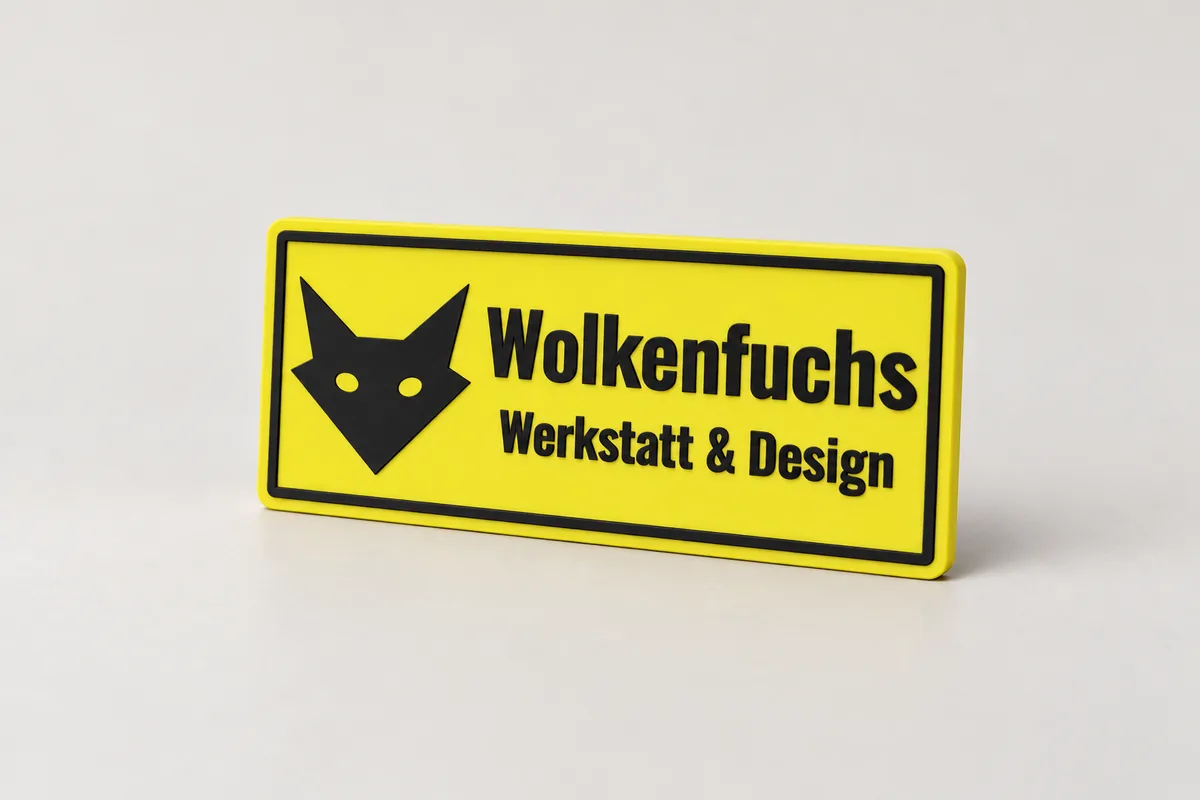
Free of charge and without warranty. How well a sign turns out and how well it holds depends on your printer, the material and the mounting. Check every printed sign yourself before you put it up. The terms of use apply.
How it looks in use
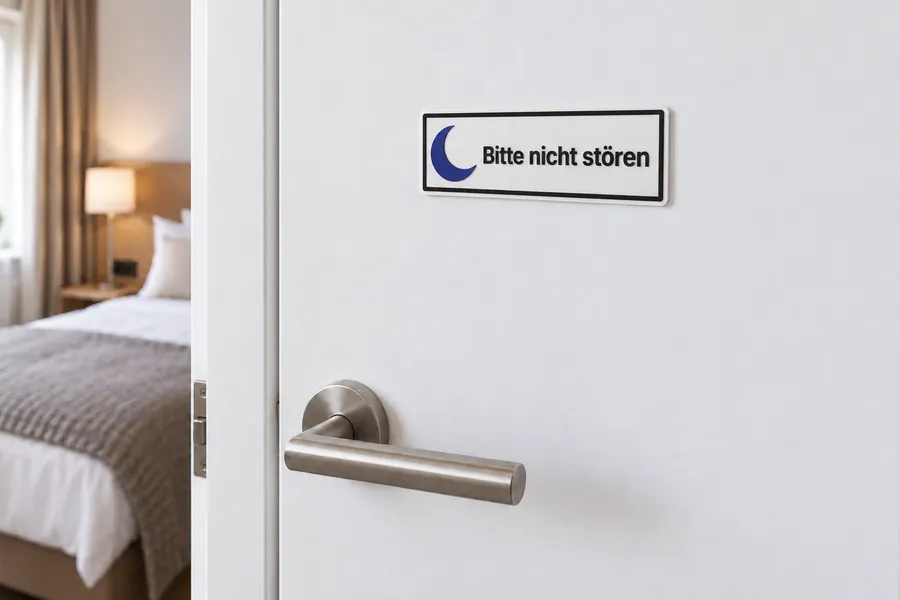
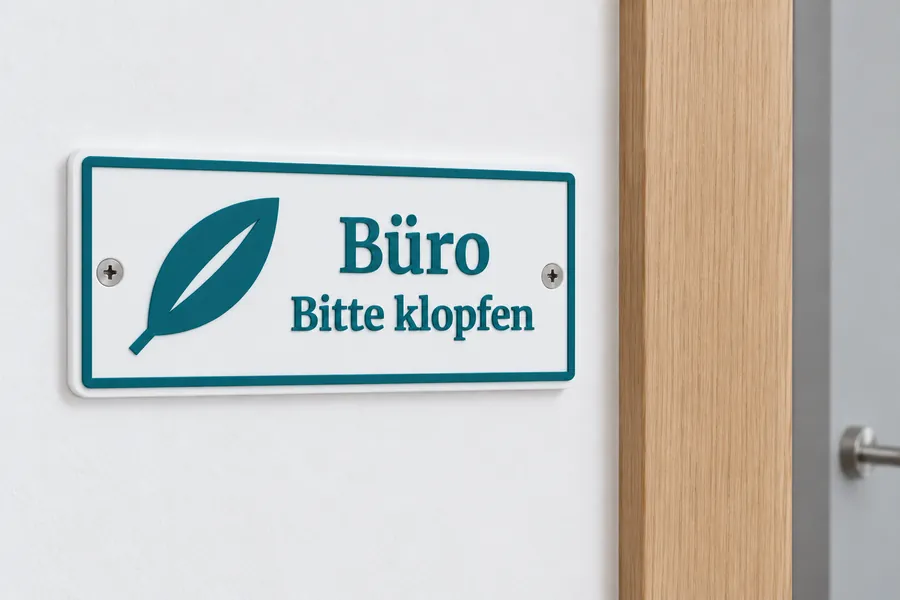
AI-generated example images in a small and a large size, not photos of prints.
Already in use
For the Shakti Yoga studio in Cologne I printed the room signs and door signs, in two colours with the studio's logo. The room sign „Prana“ hangs above the door, the door carries the sign „Kursbetrieb: Bitte nicht stören!“ (class in progress, please do not disturb). Each sign was printed in one run with two colours; the lettering and the logo stand out by about one millimetre.
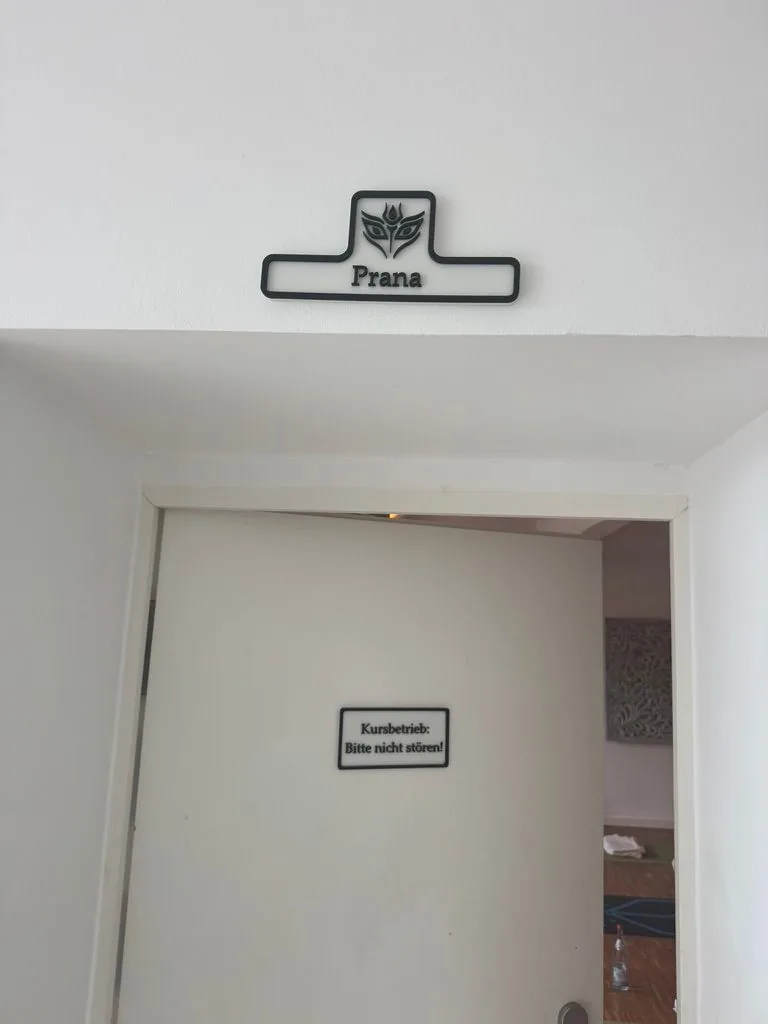
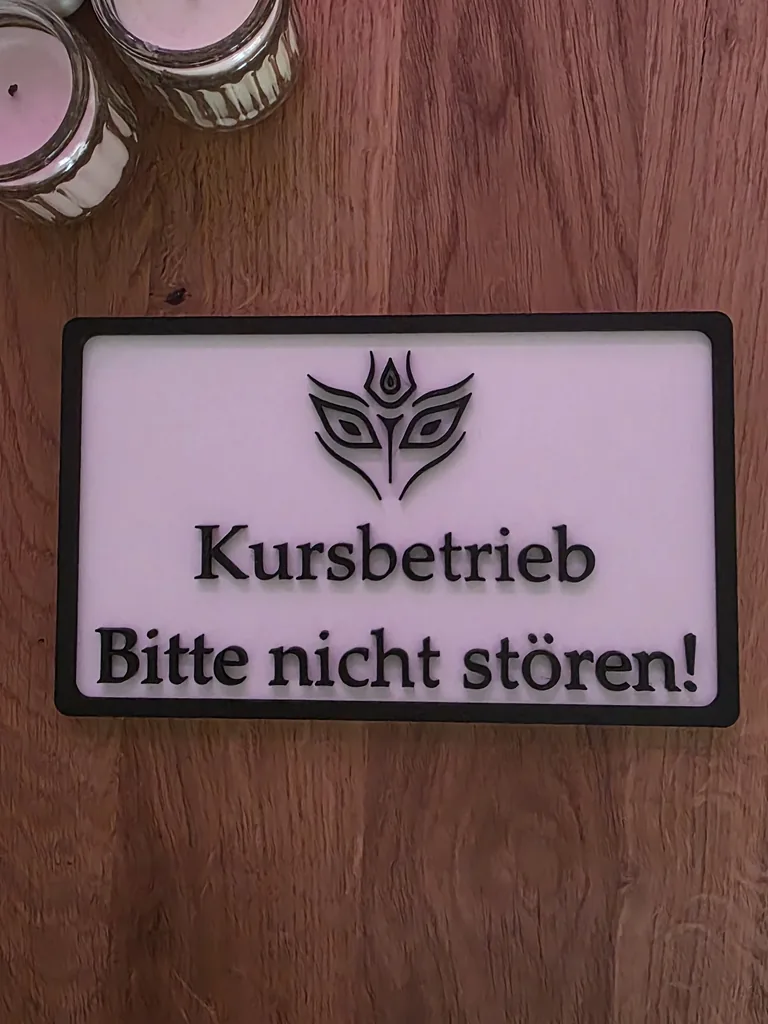
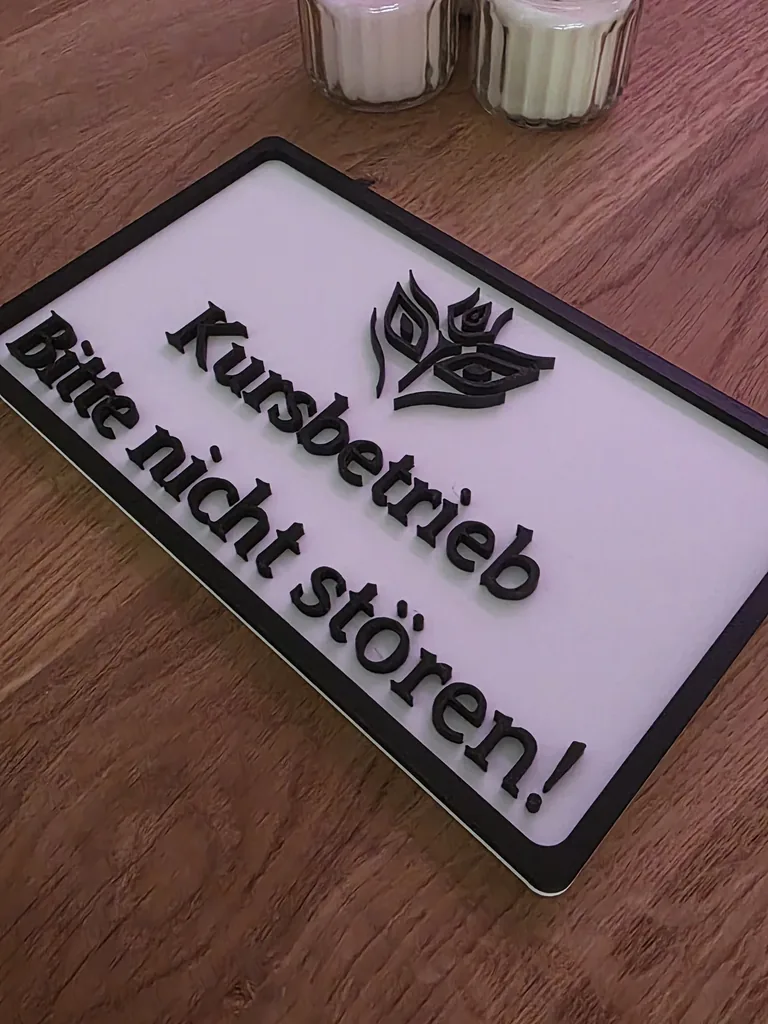
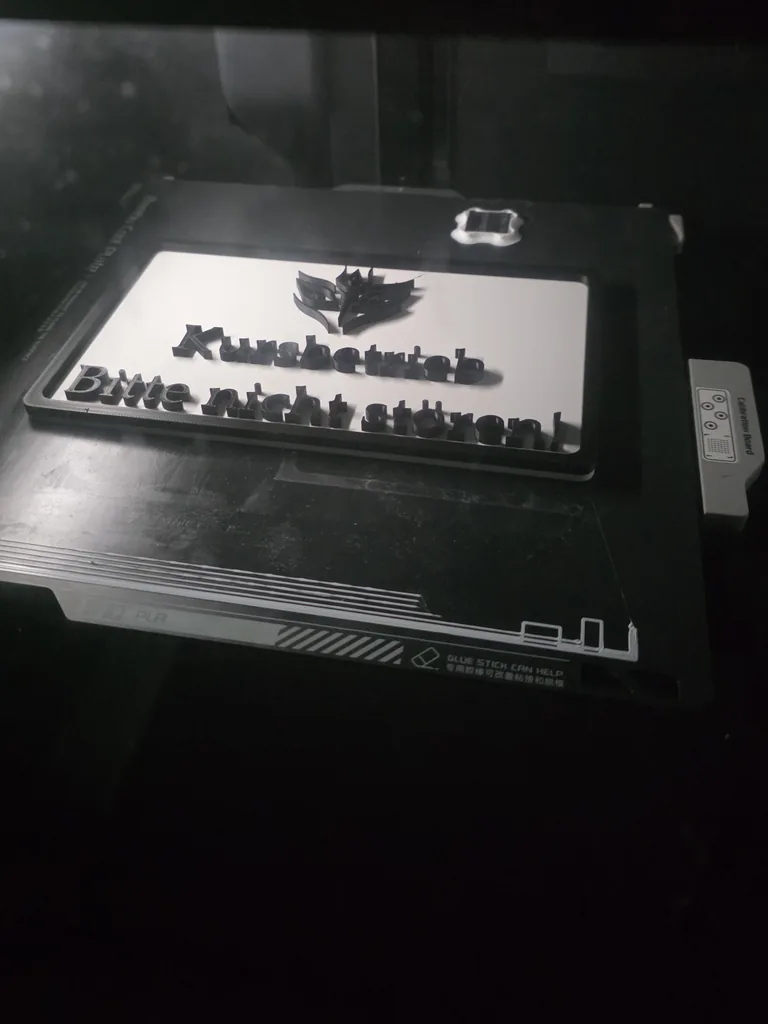
Photos taken at the studio and in my workshop, published with the studio's permission.
How the generator works
The sign consists of a flat base plate with a border, text and logo standing raised on top of it. Each of these parts can have its own colour. A typical choice is a white plate with a black border and black lettering, just like many door signs you can buy.
To get started, pick one of three templates: a company sign, a "Do not disturb" door sign or an office sign. A template sets all values, and you can change whatever you like afterwards. Then set the width and height of the plate. Then type your text, one to three lines. In "Simple" mode the generator makes the text as large as fits well on the plate, with the first line larger than the others. In "Pro" mode you set the size of each line yourself, as well as the plate thickness, corner radius, border and how far the text and logo stand above the plate.
Text and fonts
You can choose from four fonts: Inter without serifs, Merriweather with serifs, the bold and narrow Oswald for very legible signs and the script font Pacifico. All four include German umlauts and ß. The size is the height of the capital letters, so a line with a size of 10 mm has capitals 10 mm tall.
With a common 0.4 mm nozzle, strokes should be at least 0.8 mm wide. The generator checks this and marks strokes that are too thin in the preview. With Merriweather and Pacifico the fine strokes quickly become too thin at small sizes. For small text below about 6 mm, Inter and Oswald are the better choice.
Logo from a shape, an SVG file or an image
You can pick one of ten built-in shapes as a logo, for example a heart, a house or a paw. The logo sits to the left of the text or above it.
You can also use your own logo. An SVG file works best, because it already stores the logo as an outline. The generator uses filled areas and leaves out white areas. A multi-colour logo becomes a single colour. Convert any text in the SVG to paths in your graphics program first.
The generator traces an image in PNG or JPG format. The threshold sets how dark a pixel has to be to count as part of the logo. Next to your image you can see the result. This works well for clear, single-colour logos on a light background. Photos and logos with colour gradients can hardly be traced this way.
Your logo stays in your browser and is not uploaded. Only upload logos that you are allowed to use.
Printing in several colours with Bambu Studio
The 3MF file contains the sign as one object made of several parts: plate, border, text and logo. Each part is assigned a filament in the colour you chose, and parts of the same colour share a filament. When you open the file in Bambu Studio, the colours and assignments are already set. With an AMS, all you do is assign the spools when you send the job to the printer.
The file contains no print settings. After opening it in Bambu Studio, choose your printer, your filament and the print profile, for example "0.20mm Standard" with PLA. The parts and colours stay as they are.
Without a multi-colour system you print the sign with one colour change. Below the preview you can see before which layer to pause. Up to that point the printer prints the plate in the first colour, then the border, text and logo in the second. Set the colour change in your slicer at exactly this layer. It is correct if the plate thickness is a multiple of the layer height and the first layer is 0.2 mm high.
Mounting
On smooth doors and walls, double-sided mounting tape on the back is enough. With two countersunk holes you screw the sign on. The holes sit on the left and right, and the screw head lies flush with the plate. The generator shows the matching screw length.
With the keyhole on the back you hang the sign on a screw that stands a little out of the wall. Place the large opening over the screw head and slide the sign down. Depending on the screw, the plate has to be at least 6 mm thick for this. In "Simple" mode the generator sets this for you. From a width of 120 mm the sign gets two keyholes so that it hangs straight.
How the sign is printed
The sign lies flat on the print bed with its back face down. This keeps the front smooth, and the border, text and logo stand cleanly on top. You do not need any supports. For the keyhole, the printer bridges a short gap over the pocket for the screw head, which works with PLA without supports.
Signs up to 256 mm fit most current printers. If your sign is larger, the generator tells you.
Frequently asked questions
Which file should I download, 3MF or STL?
Use the 3MF file if you print with Bambu Studio, because the parts and colours are already assigned in it. The STL file contains the sign as a single body without colours. It works in any slicer, where you then set the colour change.
Why is my text marked as too thin?
Some strokes are narrower than 0.8 mm, which is less than two lines of a 0.4 mm nozzle. Make the text larger or choose Inter or Oswald. You can still download the sign, but the marked spots will come out inaccurate.
My image is not traced properly. What can I do?
Move the threshold until the result next to your image looks right. If the logo is light on a dark background, switch on "Swap light and dark". Tracing works best with an SVG file of your logo, which you can often get from your designer or your own website.
Can I get the sign ready printed?
Yes, on request I print the sign and ship it to you. I will tell you the price beforehand. Below the generator you will find the "Request by e-mail" button, which already includes the link to your sign. An uploaded logo is not part of the link, so please send it as an attachment.
Can I save or share my settings?
Yes. All settings except an uploaded logo are stored in the page address. Use the "Copy link" button and save the link as a bookmark or send it on. Anyone who opens the link sees exactly your sign.
The generator runs entirely in your browser. Your text and logos are not transmitted. When you download a file or copy the link, the page counts anonymously which generator and mode were used.